Basic Git#
Git is a version control system, or a way for us to collaborate on code and manage having multiple versions of code working in parallel
While many modern cloud applications, like google docs, have some form of auto-save to the cloud, we don't necessarily want a single auto-updating version of our code. As we're working, the changes we make can cause code to break very quickly in ways that might not be immediately obvious, which means it's good to be able to take a "snapshot" of the code at a point where it worked. So, we use a tool called Git to manage different versions of our files and save them to Github, which lets us share the codebase between computers. Instead of automatically syncing to Github, we save our code in small named chunks called commits. These named versions makes it easy to revert changes that break previously working behaviour and see when and by who code was written. Git also lets us have different, parallel versions, called branches, of code. This means that while one person works on code for the autonomous, another could work on vision, for example, without overriding each other.
Resources#
Read one of the following:
Install the following:
Basic Git Commands#
To use Git, developers use specific commands to copy, create, change, and combine code. These commands can be executed directly from the command line or by using an application like GitHub Desktop. Here are some common commands for using Git:
git init: initializes a brand new Git repository and begins tracking an existing directory. It adds a hidden subfolder within the existing directory that houses the internal data structure required for version control.
git clone creates a local copy of a project that already exists remotely. The clone includes all the project's files, history, and branches.
git add stages a change. Git tracks changes to a developer's codebase, but it's necessary to stage and take a snapshot of the changes to include them in the project's history. This command performs staging, the first part of that two-step process. Any changes that are staged will become a part of the next snapshot and a part of the project's history. Staging and committing separately gives developers complete control over the history of their project without changing how they code and work.
git commit saves the snapshot to the project history and completes the change-tracking process. In short, a commit functions like taking a photo. Anything that's been staged with git add will become a part of the snapshot with git commit.
git status shows the status of changes as untracked, modified, or staged.
git branch shows the branches being worked on locally.
git merge merges lines of development together. This command is typically used to combine changes made on two distinct branches. For example, a developer would merge when they want to combine changes from a feature branch into the main branch for deployment.
git pull updates the local line of development with updates from its remote counterpart. Developers use this command if a teammate has made commits to a branch on a remote, and they would like to reflect those changes in their local environment.
git push updates the remote repository with any commits made locally to a branch.
For more information, see the full reference guide to git commands.
Git Log#
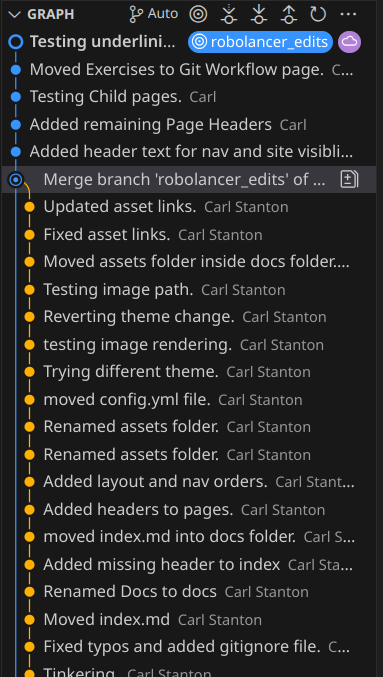
Git log is a tool to view your history in Git. By default Git Log shows all of the commits in the repository, ordered from newest to oldest. in VSCode, the graph panels shows the Git log/History in a visual way.
Github Setup#
Github is a website that hosts Git repositories. The Robolancers store all of their codes on Github.
- Sign up for a Github Account here: Sign up for Github
- Enable 2 factor Authentitaction (Required to add code): 2fa setup
Examples#
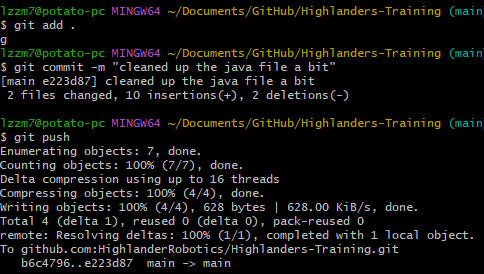
- Typing
git add .thengit commit -m "commit name"thengit pushis the bread and butter of using Git. This sequence tells Git to collect all of your uncommitted changes, commit them, then push them to Github. If you'd like to combine these into one command, you can add an alias to your .gitconfig file (ask a lead or mentor for help). git checkout branch-nameswitches between branchesgit checkout -b new-branchmakes a new branch and switches to it. Note that the first time you push from this branch you will need to enter some extra parameters, but the terminal should prompt you with the correct command when you entergit pushgit statusdisplays the current branch and what changes you have uncommitted and stagedgit pullupdates the code on your device with the latest code from Github. Recommended to do this whenever someone else has been working on the same branch, otherwise you might make conflicting changes- A simple demo video of committing some changes
Managing Git in Vscode#
Git Commands in Vscode GUI#
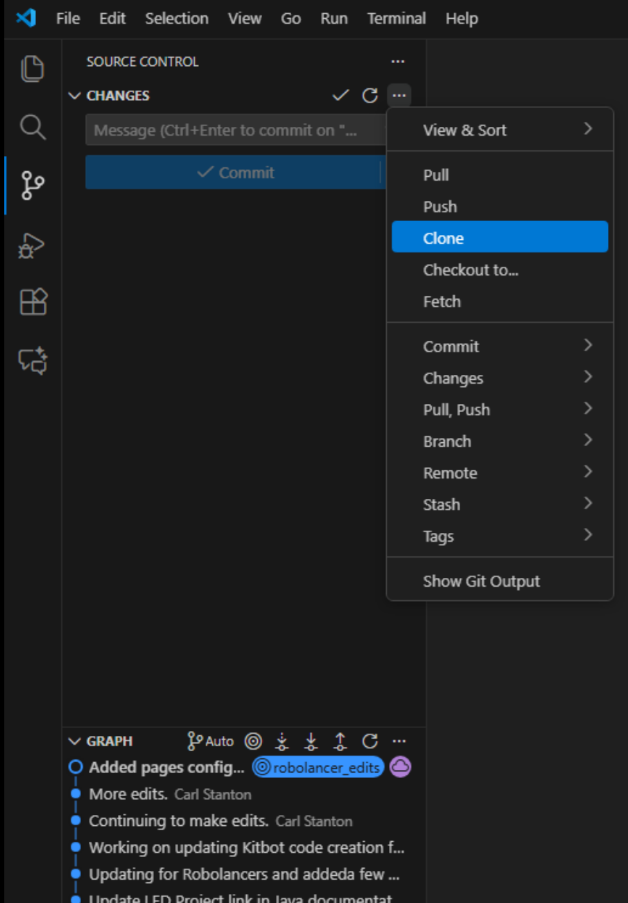
Git branches menu#
Accessed by clicking on the branch name at the bottom left
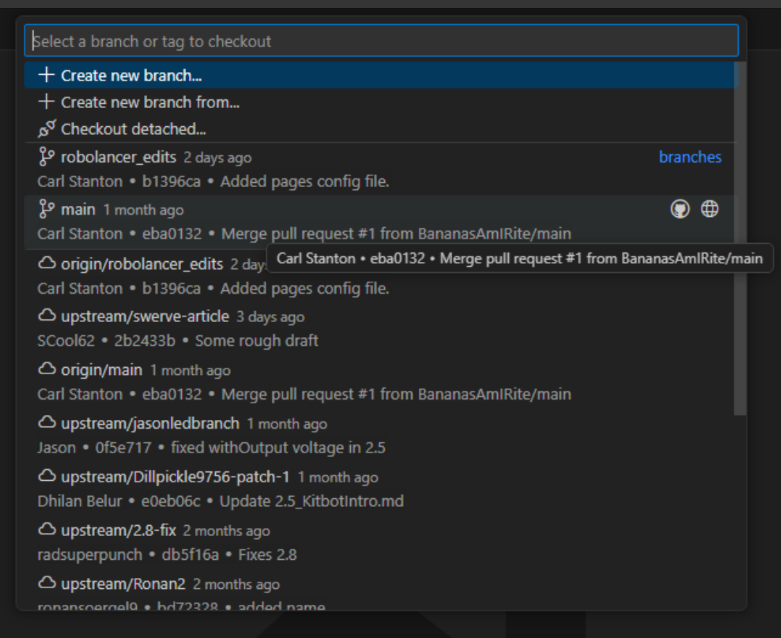
Merge in another branch in vscode#
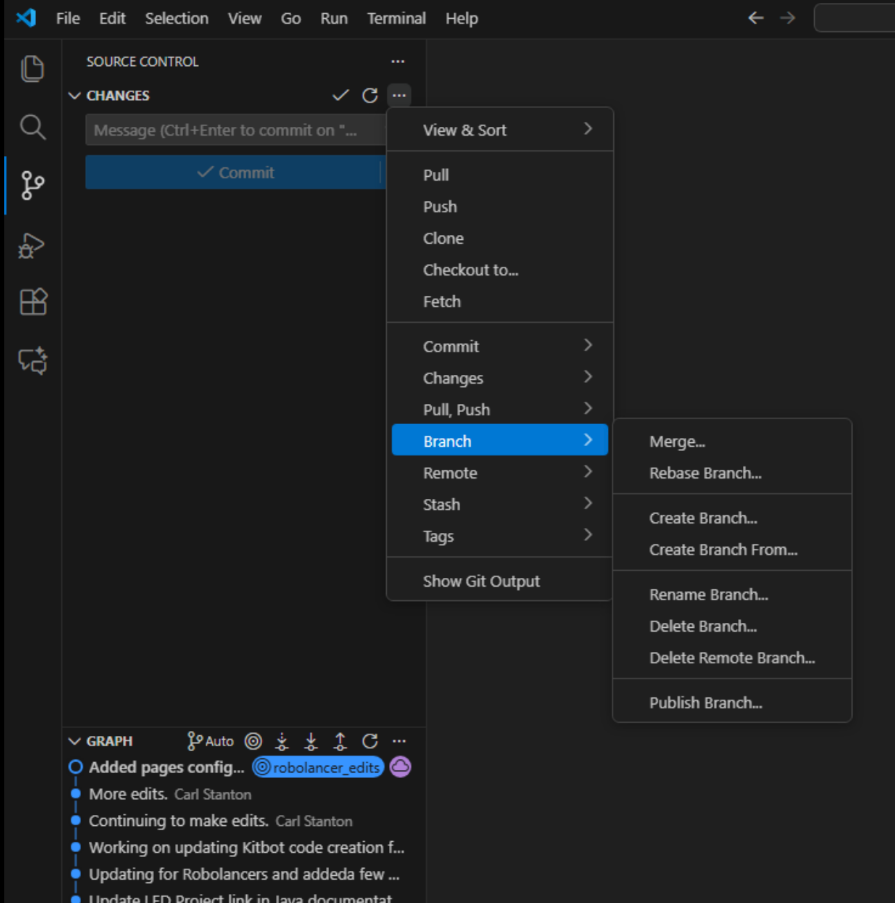
Notes#
- We use GitHub's pull request (PR) feature to manage branches and merges. Always make sure to merge to main using a PR. PR's will be explained further in the Using GitHub docs.
- Always commit code that at the very least compiles (you can check this by running the "Build robot code" option in WPILib's command bar)
- Commit messages should be short (~10 words), simple, and descriptive. If it's too long, use multiple lines in the commit message
- Commits should be frequent. Whenever you reach a working state, you should commit before you accidentally break anything again
- Don't commit directly to the
mainbranch, asmainshould always contain working code. New code should be developed on separate branches and can only be merged through a pull request after being reviewed and approved. - ALWAYS ALWAYS ALWAYS commit and push before you leave a meeting, especially if you are using a computer that is not yours! It is never fun to have to commit someone else's code at the start of the day or find out an hour in that you've been working off of someone else's uncommitted (potentially broken!) code. Uncommitted code also makes it harder to track what is and isn't finished.
- Run a
git statusat the start of a meeting to make sure you committed your code and that you are on the right branch
Knowledge Check#
Quiz results are saved to your browser's local storage and will persist between sessions.
You run git clone https://github.com/Team/2026-Robot-Code.git. What does this do?
Which branch should always contain working, reviewed code?
Quiz Progress
0 / 0 questions answered (0%)
0 correct